

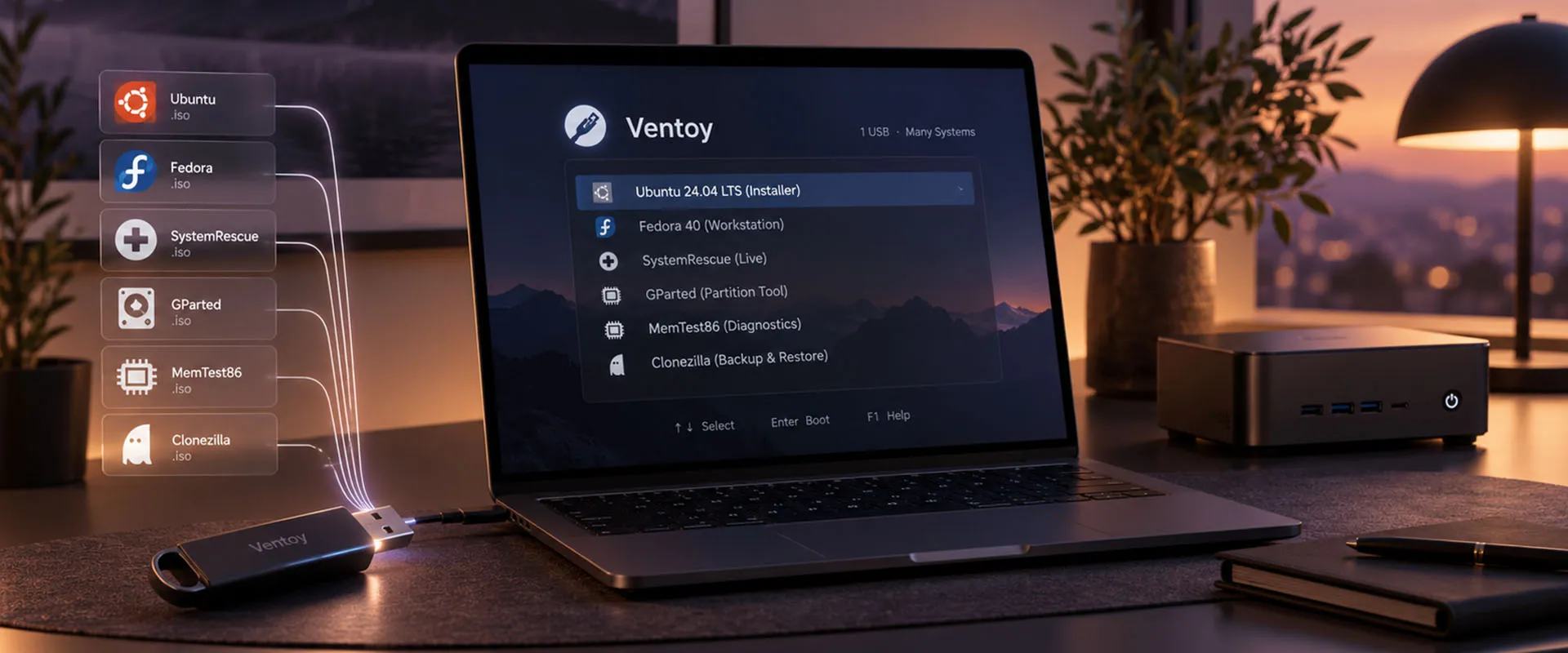
 The Terminal Dev Stack I Wanted 10 Years Ago
Neovim, AstroNvim, tmux, modern language servers and a new generation of terminal tools now cover most of my everyday development work — while AI makes the whole stack dramatically easier to configure and learn.
Read
The Terminal Dev Stack I Wanted 10 Years Ago
Neovim, AstroNvim, tmux, modern language servers and a new generation of terminal tools now cover most of my everyday development work — while AI makes the whole stack dramatically easier to configure and learn.
Read
As tech professionals and enthusiasts, we’ve all been there – trying to keep track of multiple USB sticks, each dedicated to a single OS or recovery tool, endlessly reformatting and re-burning ISOs each time we need a new one. It's a cumbersome and time-consuming task, and yet, until recently, it seemed like the only way. Enter Ventoy, a solution that redefines how we manage bootable USB drives. Imagine a single USB stick, capable of carrying dozens of ISOs, switchable at will without needing reformatting or “burning” – that’s the magic Ventoy offers.
In this post, we’ll look at why Ventoy has become an essential tool for modern tech troubleshooting, installation, and system recovery, and why it’s the future of portable OS management.
What is Ventoy?
Ventoy is a free, open-source tool that allows you to create a multi-boot USB drive for ISO and IMG files. Its standout feature? You don’t need to “burn” an ISO onto your USB stick. Instead, simply drag and drop your ISO files onto the USB drive and Ventoy’s unique partitioning system allows you to select and boot from any of these ISOs during startup. This approach works seamlessly across both UEFI and legacy boot modes, making it highly compatible with both modern and older machines.
With Ventoy, your USB stick becomes a true powerhouse, transforming any bootable ISO into a portable, ready-to-use resource without the hassle of reformatting. And if you’re someone who frequently experiments with different operating systems, or needs a quick way to troubleshoot and recover systems, Ventoy’s multi-ISO feature will quickly become indispensable.
Key Features
- Multi-ISO Support: Store multiple OS images on one USB and boot from any.
- Drag-and-Drop Convenience: No need to re-burn ISOs. Just add or delete files as needed.
- Compatibility: Supports both UEFI and legacy BIOS boot modes.
- Flexibility: Works with virtually any ISO, including Windows, Linux distros, recovery tools, and more.
- Open-Source: Free to use and regularly updated by an active developer community.
Why Ventoy is a Game-Changer Over Traditional ISO "Burning"
In the past, preparing a USB stick with an ISO image was an all-or-nothing process. To switch to a new OS or tool, you’d need to completely wipe the USB, burn a new ISO, and start from scratch. This approach might have been workable a decade ago, but in today’s fast-paced world, where modern USB sticks offer 64GB or even 128GB of space, it feels outdated. I worked with balenaEtcher or rufus for a long time but it always was a slow process, similar to burning an installation CD-ROM back in the days. And for your basic needs you needed multiple USB sticks, which were quite expensive back then.
Save Time and Reduce Hassle
With Ventoy, you can save hours by cutting out repetitive ISO-burning processes. Simply copy as many ISOs as your USB can handle, and Ventoy will let you select the one you want to boot at startup. Want to switch to a different OS or utility? Restart, choose another ISO from the list, and you’re good to go. The flexibility Ventoy offers is ideal for IT pros, field technicians, and anyone who needs a versatile, all-in-one USB for troubleshooting.
Affordable and Efficient Storage
Modern USB sticks are inexpensive, and with high-capacity, fast USB 3.0 models widely available, creating a Ventoy drive with multiple OSes is practical and affordable, only needing a single high quality USB stick. Imagine having every essential tool and OS – from the latest Windows version to specialized Linux distributions, disk cloning tools like Clonezilla, and secure wipe utilities like DBAN – all in your pocket, ready for any situation.
The Power of Ventoy for Troubleshooting and Recovery
Having multiple bootable ISOs on one device is invaluable when you need quick access to various tools and systems. With a Ventoy-powered USB stick, you can carry all the tools necessary to:
- Install or Repair Operating Systems: Have the latest Windows and Linux distributions at hand for fresh installs or repairs.
- Recover Data and System Backup: Run Clonezilla or similar tools directly from the USB to back up or clone entire disks.
- Secure Data Wiping: With tools like DBAN on your Ventoy stick, you can securely erase drives, ensuring data privacy before disposal or resale.
- System Diagnostics and Testing: Use Linux-based rescue systems or specialized diagnostic ISOs for system testing and recovery.
Each of these tasks requires only the right ISO file on your Ventoy USB stick – no need to reformat or prep the drive between jobs. This makes it ideal for fast-paced environments or unpredictable tech troubleshooting scenarios.
Setting Up Ventoy: A Quick Guide
Getting started with Ventoy is refreshingly straightforward. Here’s a quick rundown on setting up your own multi-ISO USB drive:
- Download and Install Ventoy: Visit the official Ventoy website and download the latest version.
- Prepare Your USB Stick: Install Ventoy directly onto the USB drive you want to use. The process is quick and will partition the drive to make it Ventoy-compatible. Ventoy provides a GUI and CLI mode for Windows and Linux - see the official installation guide for details.
- Add Your ISOs: Simply drag and drop any ISO or IMG files onto the USB. Ventoy will automatically recognize these files and make them selectable during boot.
- Boot and Select: Plug your Ventoy USB into any computer, choose to boot from USB, and Ventoy will present a list of available ISOs. Select the one you need, and off you go!
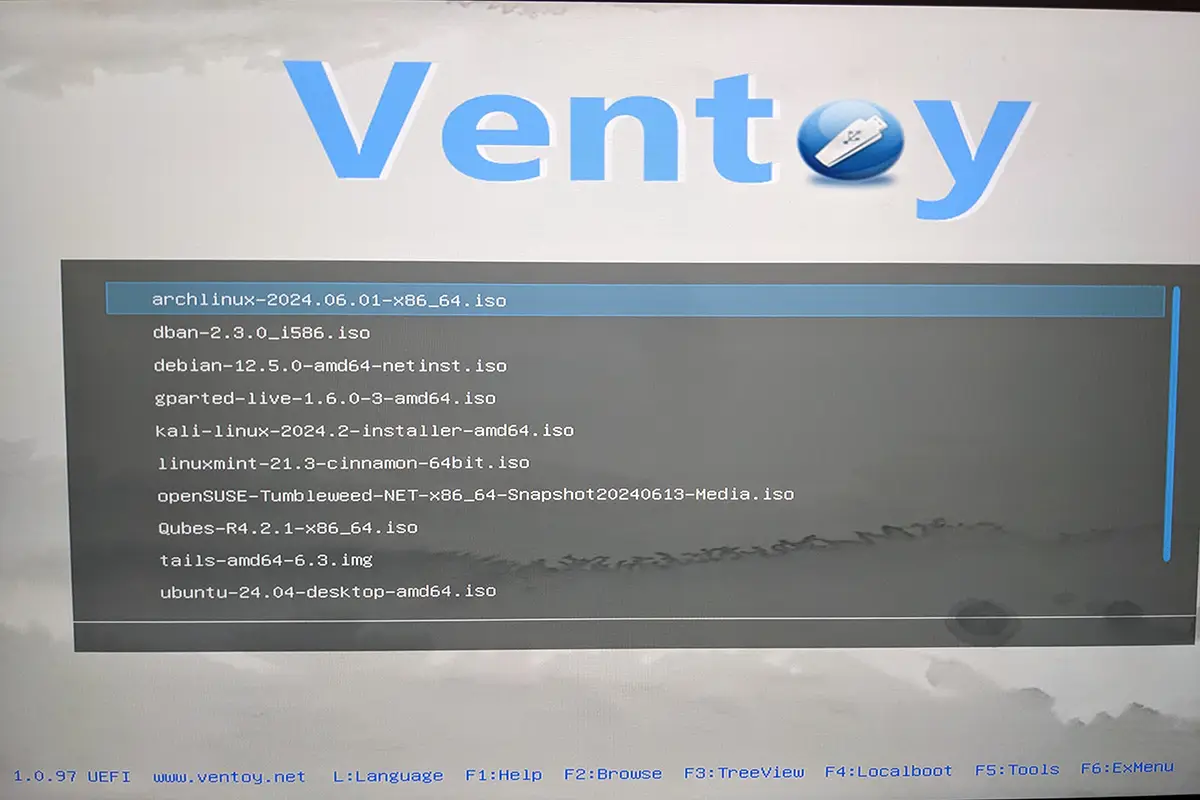
Ventoy in Action: Recommended ISOs for Your USB Toolkit
To get the most out of Ventoy, consider stocking your USB stick with these essential ISOs:
- Latest Windows ISO: Keep the current version of Windows 10 or 11 on hand for installations or repairs.
- Popular Linux Distros (e.g., Debian, Ubuntu, Arch): Great for testing, recovery, or just working in a Linux environment.
- Clonezilla: Ideal for full disk cloning, backups, or migrations.
- DBAN (Darik’s Boot and Nuke): For secure data wiping and disk sanitization.
These tools, all accessible from one Ventoy USB, can cover an impressive range of use cases, making Ventoy indispensable for anyone who frequently works with computers.
Infrastructure & operations
Need this kind of infrastructure thinking professionally?
Through Neoground, I work on Linux systems, hosting, platform operations, modernization, reliability, and the less glamorous technical foundations that good digital systems depend on.
The Future of ISO Management: Embracing Flexibility and Efficiency
Ventoy represents a new standard in ISO management. In a world where flexibility and adaptability are key, the traditional "burn once, use once" method of creating bootable USB drives is simply outdated. With Ventoy, we get a glimpse into a future where tech tools are streamlined, multifunctional, and intuitive. It’s about time we adopted smarter, more efficient ways to handle our tech tools.
For tech enthusiasts, IT professionals, and casual users alike, Ventoy’s approach is not just a time-saver; it’s a glimpse into a more adaptable, resourceful tech toolkit. By simplifying multi-ISO management, Ventoy is reshaping the way we approach system recovery, installations, and troubleshooting.
Final Thoughts: Let Ventoy Transform Your USB Stick Experience
If you haven’t yet tried Ventoy, now’s the perfect time. Imagine a USB drive loaded with every OS, recovery tool, and backup utility you need – all available at a moment’s notice, without a single reformat. It’s an invaluable resource that’s hard to beat. So, if you’re ready to streamline your workflow and maximize the power of a single USB stick, give Ventoy a try and experience the freedom of a truly versatile, multi-ISO drive.
It improved my IT troubleshooting process a lot, especially when I visit clients or whenever I need to set up a new machine.
What are your must-have ISOs on Ventoy? Share your favorite tools and OSes in the comments or reach out if you’d like more insights on creating the perfect troubleshooting toolkit.
This post was created with assistance from AI (GPT-4o).

No Comments Yet
Add a comment