

 Mein moderner Terminal-Dev-Stack
Neovim, AstroNvim, tmux, moderne Language Server und eine neue Generation erstaunlich guter Terminal-Werkzeuge decken inzwischen fast meinen gesamten Entwicklungsalltag ab. Und ausgerechnet KI beseitigt einen großen Teil der früheren Hürde: Konfiguration, Orientierung und Lernen werden plötzlich erheblich einfacher.
Weiterlesen
I have a small collection of virtual machines running operating systems from the past several decades. MS-DOS, Windows 3.1, Windows 95, 98, Me, 2000, XP, Vista, 7, 8.1, and even IBM OS/2. Some are old installations I've kept around for years, complete with the software, games and utilities I used back then.
Recently, I spent some time revisiting these machines in VMware Workstation. Unfortunately, the experience wasn't nearly as good as I remembered.
Even fairly lightweight systems felt sluggish. Simple desktop interactions were unnecessarily slow, multimedia playback wasn't particularly smooth, and the whole thing seemed strangely inefficient for a modern computer running software from the 1990s.
Surely a current workstation should have no trouble running Windows 98?
The culprit: VMware's ULM mode
It turns out that the problem wasn't Windows 98, the virtual hardware, or VMware's age. It was Windows itself — or, more precisely, its Hyper-V hypervisor.
Modern VMware Workstation can coexist with Microsoft's Hyper-V and virtualization-based security features by using the Windows Hypervisor Platform (WHP) APIs.
That's convenient for compatibility, but it comes with a catch.
VMware traditionally uses its own virtual machine monitor, which can access the processor's hardware virtualization facilities directly. When Hyper-V is active, VMware may instead operate in User Level Monitor (ULM) mode, relying on Microsoft's hypervisor interfaces.
And in my case, that made an enormous difference.
You can check the active mode in the vmware.log file inside a VM's directory. Look for:
Monitor Mode: ULMThat was exactly what I found.
The preferred native VMware monitor was no longer being used. Instead, the VMs were running through the additional Hyper-V compatibility layer.
Switching back to native virtualization
Since I don't need Hyper-V on this workstation, I disabled the Windows hypervisor in the Windows Features.
After rebooting, VMware was finally able to use its own virtualization monitor again.
The corresponding log entry changed to:
Monitor Mode: CPL0And the difference was remarkable.
The old Windows environments became substantially more responsive. Desktop operations felt immediate again, multimedia worked much better, and even applications that had previously felt painfully sluggish were suddenly pleasant to use.
It was almost absurd: software from thirty years ago had been struggling not because the modern computer was too slow, but because of the virtualization infrastructure sitting between it and the hardware.
A note for anyone trying this: Depending on the host configuration, Hyper-V, Virtual Machine Platform, Windows Hypervisor Platform, Memory Integrity, Windows Sandbox, or other VBS features may also need attention. Disabling the hypervisor affects WSL2, Hyper-V-based tools and potentially important Windows security protections. It's a trade-off, not a universal optimization.
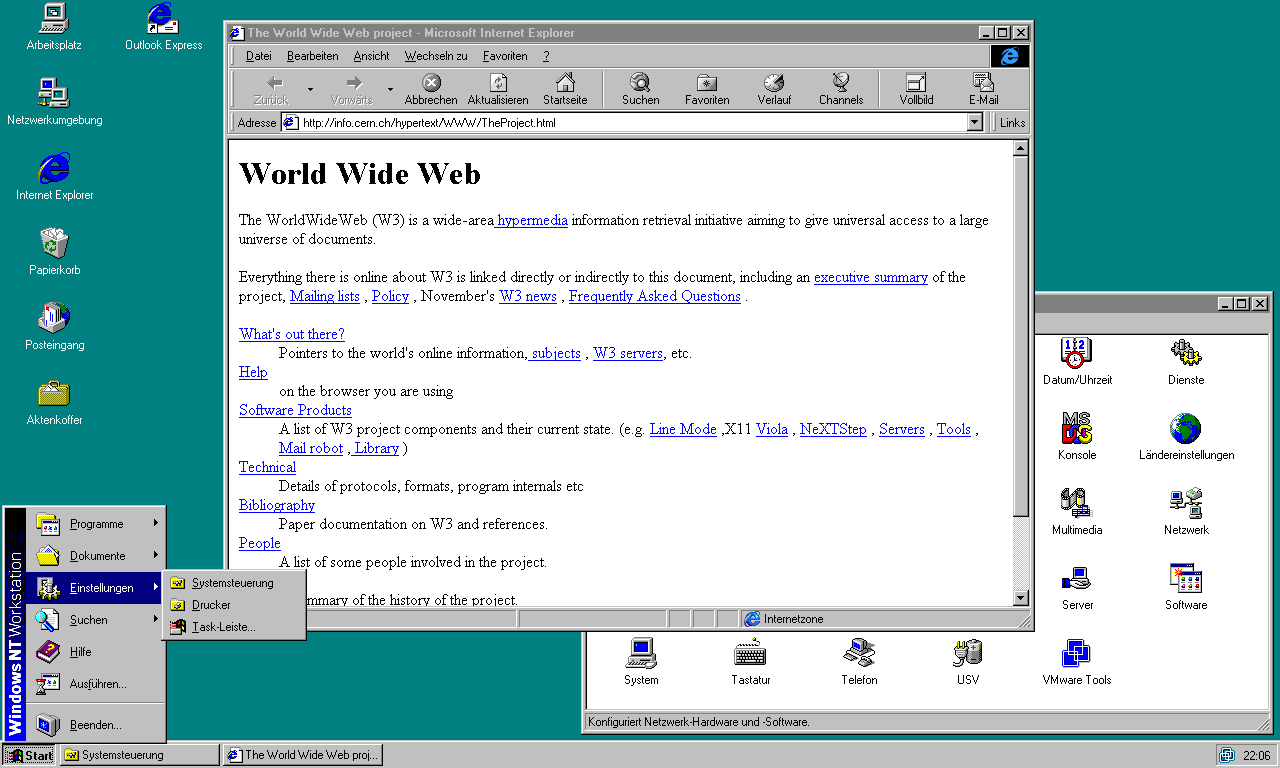
(Yes, I took that screenshot tonight - the first website of the internet is still online and works fine on Internet Explorer 4.0 SP1 on a Windows NT4 Workstation SP6)
A little trip through Windows history
With the performance problem resolved, I ended up spending considerably more time inside these old systems than originally planned.
There's something wonderful about opening Windows 3.1 and finding Office 4.3c, complete with the interface conventions of early graphical computing.
Or starting Windows 95, followed by Office 95. Then Windows 98 with Office 97. Windows 2000 with Office 2000. Windows XP with Office 2007, Vista with Office 2010, and so on.
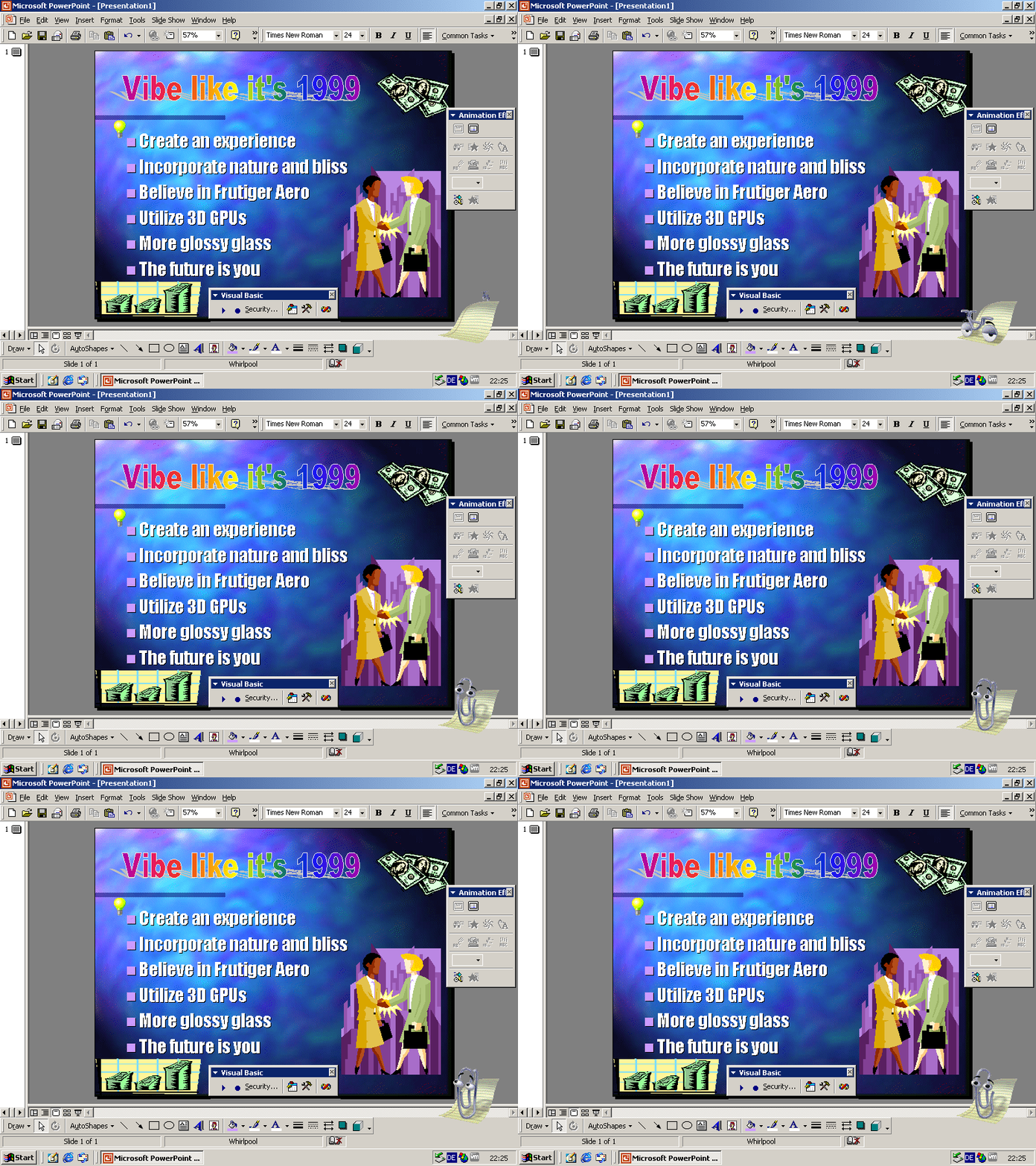
My collection covers a rather large part of Microsoft's desktop history.
And it isn't just Windows and Office.
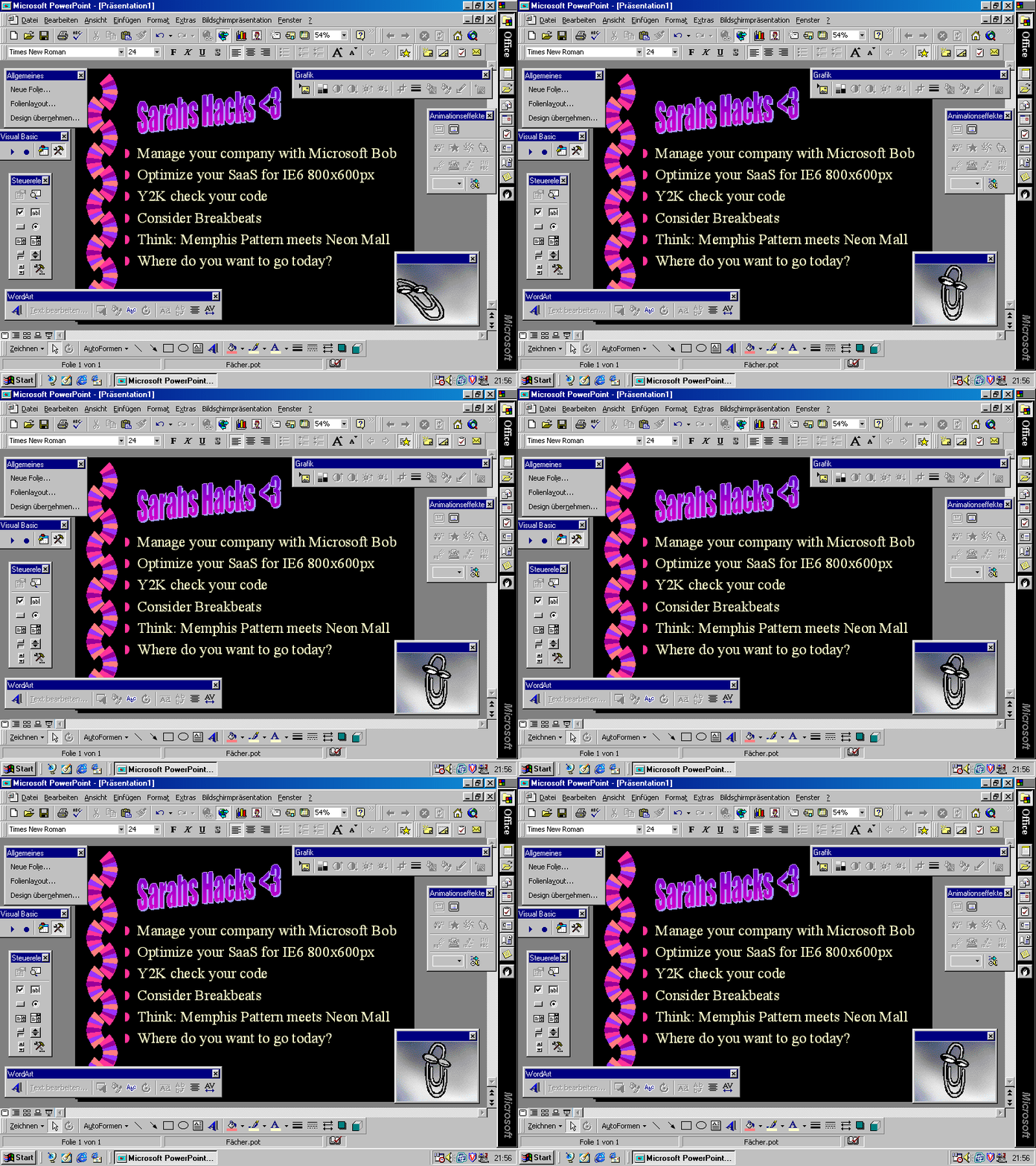
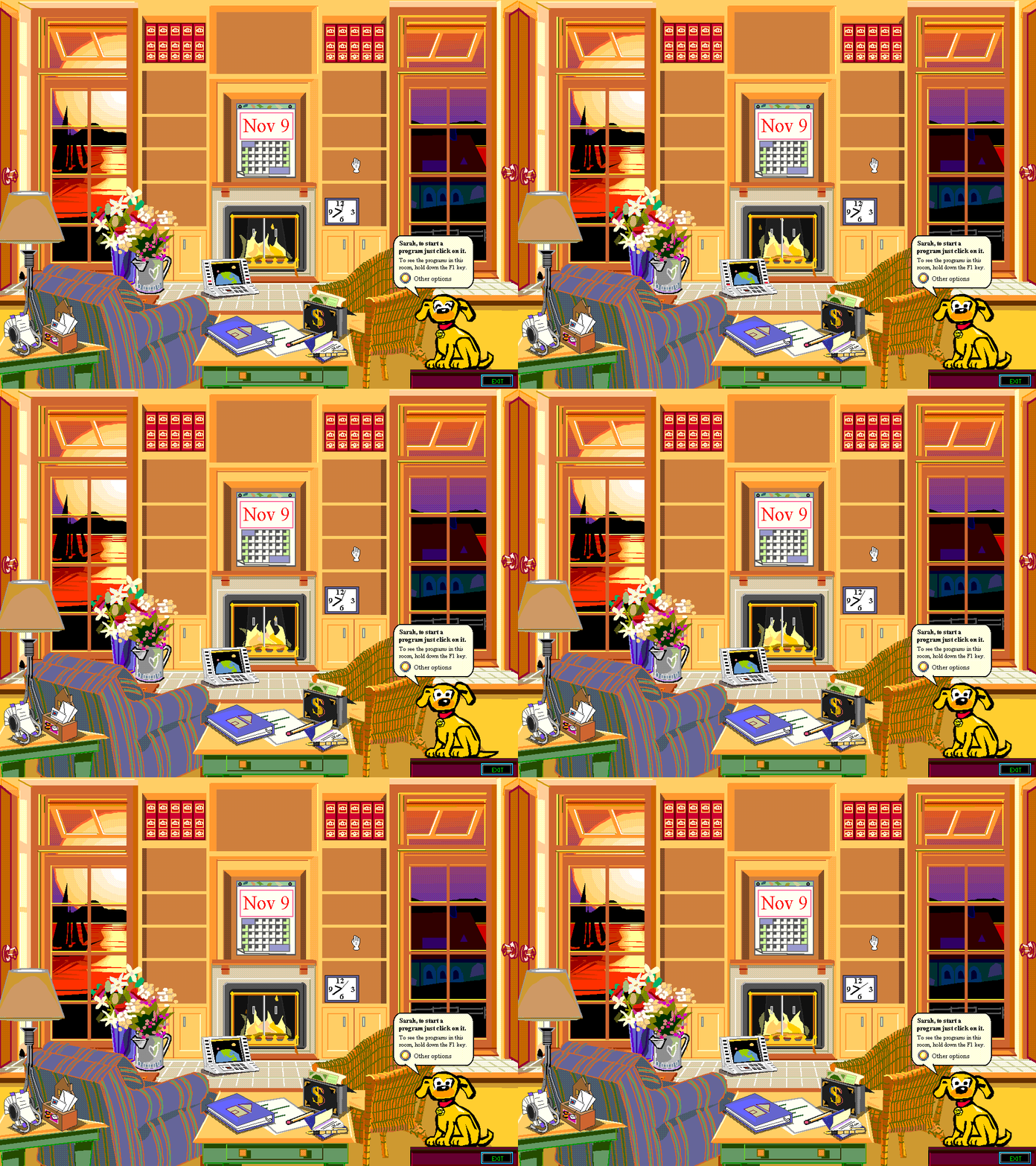
There are old versions of Adobe software, Winamp, VLC, Netscape, Microsoft Encarta, Works, Bob, the infamous Office Assistant, old clipart libraries, and hundreds of games and smaller utilities.
Even Flash Player 32 is still installed in one of the historical environments. But I only rarely need it. Most flash games run fairly well on Ruffle these days in my own web app.
Some installations preserve years of original software and configuration changes. They aren't simply freshly installed copies of Windows for taking screenshots.
That's what makes them particularly interesting. You don't just see an old operating system — you experience a little snapshot of how people actually used computers back then.
And with VMware running properly, many of these environments still work astonishingly well.
Of course, that doesn't mean every historical game or graphics API works perfectly. In particular, proper 3D acceleration on older Windows versions remains complicated. But for ordinary applications, desktop software, multimedia and plenty of older games, the experience is surprisingly enjoyable.
Even Windows 7 and 8.1 are interesting to revisit. During my experiments, parts of their historical Windows Update infrastructure were still responding, including some legacy update activity. That's hardly a substitute for current security support, but it's fascinating to observe.
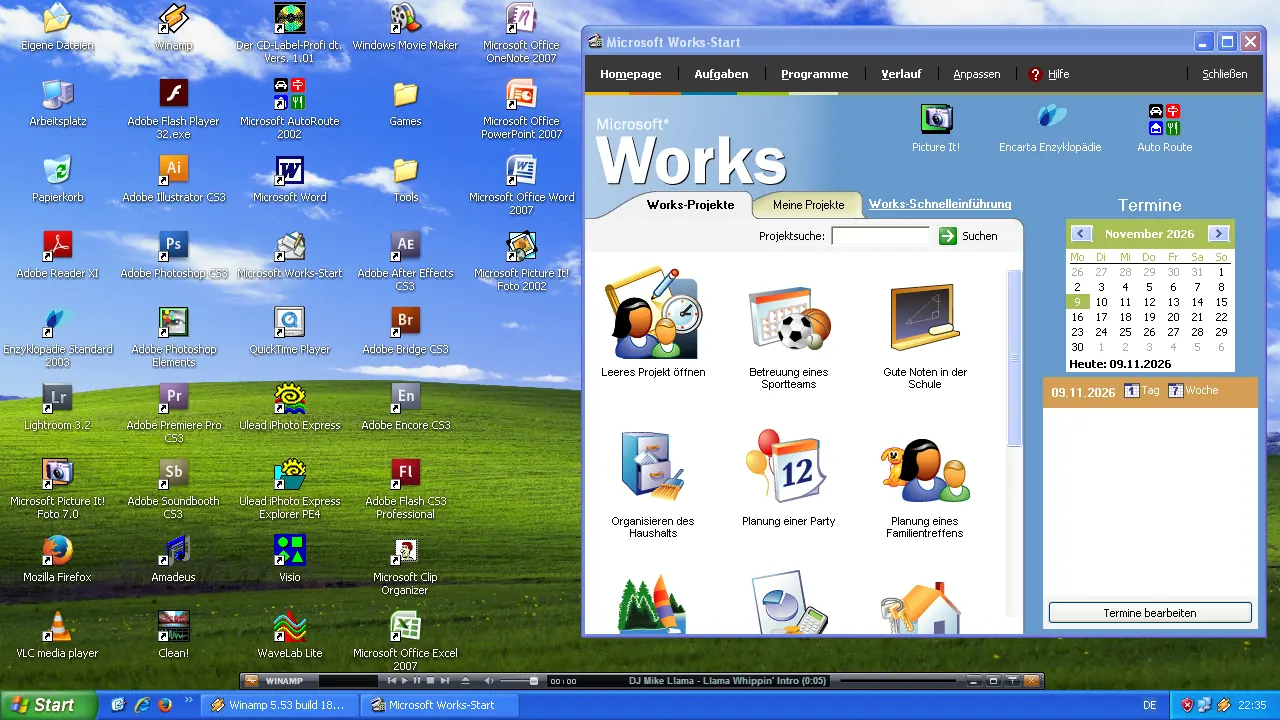
I wish QEMU could replace VMware
All of this also reminded me of a long-standing frustration.
I would genuinely prefer an open-source solution for preserving these environments over the coming decades.
QEMU is an extraordinary project. It can emulate entire computer architectures, supports a huge variety of hardware configurations, and remains one of the most important foundations of modern virtualization.
But running an old Windows desktop is more than simply getting its kernel to boot.
You want suitable graphics drivers, responsive display updates, working audio, convenient input handling, stable virtual hardware and ideally some level of graphics acceleration.
This is where VMware Workstation, with its long history of desktop virtualization and legacy guest support, still has a remarkable advantage.
There are certainly good QEMU solutions for old Windows installations, including community-developed display drivers and software-rendered 3D implementations. Projects like SoftGPU and VMDisp9x have accomplished impressive things.
Yet the overall experience is considerably more fragmented, especially compared with a well-configured VMware VM using the appropriate historical VMware Tools. Old Windows versions work on QEMU, but I never managed to get everything working, including advanced graphics, audio, or networking.
It's a shame, because long-term digital preservation shouldn't depend so heavily on proprietary software, discontinued guest support, and whether a future VMware release still knows how to handle a virtual machine created twenty years ago.
For a collection like this, compatibility and longevity matter much more than cutting-edge virtualization features.
I'd love to see an open-source virtualization stack offer the same seamless experience for legacy Windows environments.
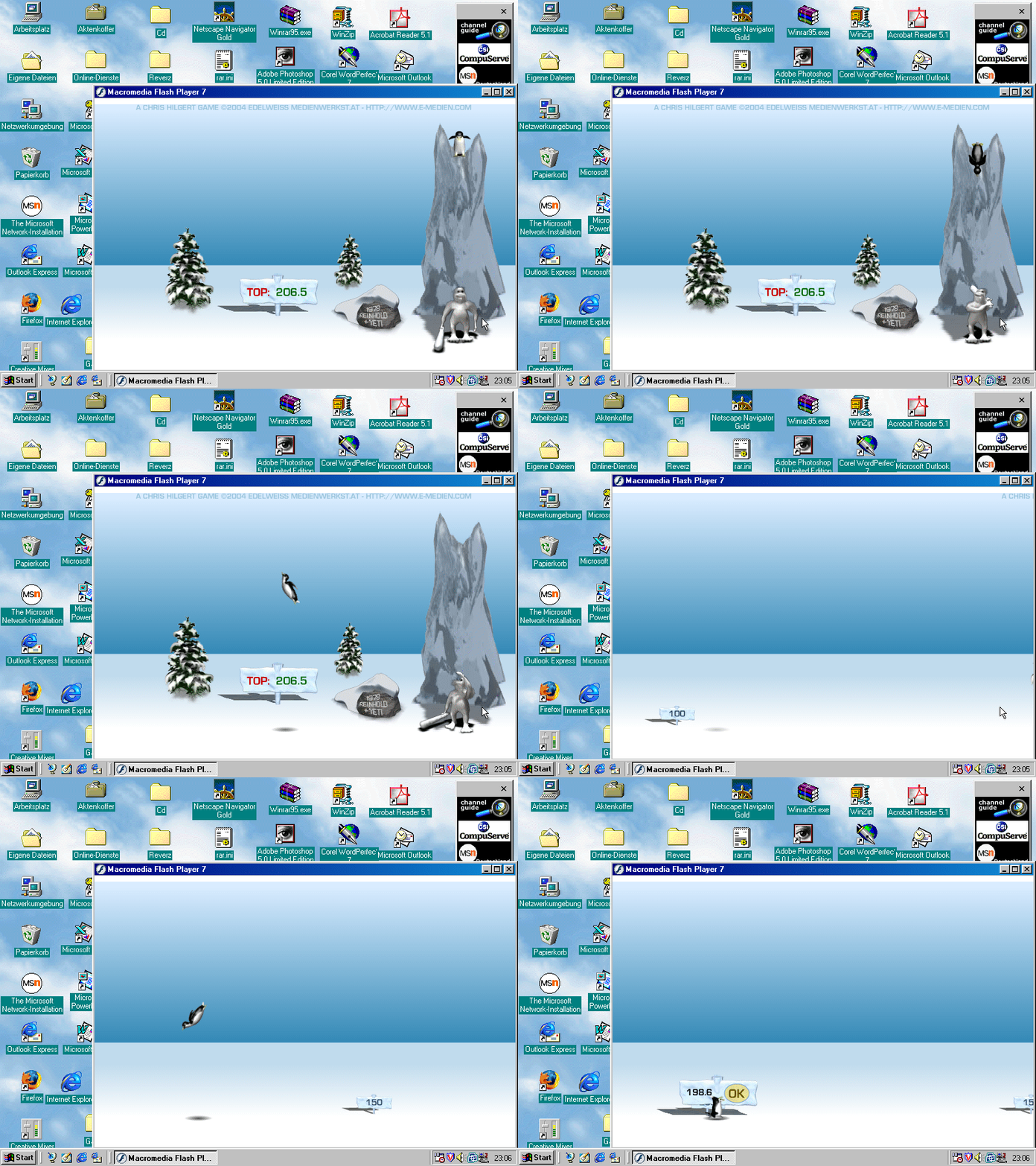
Old software, modern hardware
For now, VMware Workstation remains a remarkably capable way to keep this part of computing history alive.
And the biggest discovery from this little excursion was surprisingly simple: if your VMware VMs feel inexplicably slow on a modern Windows host, check the monitor mode before spending hours debugging the guests themselves.
Sometimes the difference between a barely usable Windows 98 machine and a wonderfully responsive one is a single hypervisor setting.
Now, if you'll excuse me, there's a copy of Microsoft Bob waiting to be launched.
Noch keine Kommentare
Kommentar hinzufügen